
Monitors are sold on individual numbers — inches, hertz, a resolution — when none of those mean much alone. A 32-inch screen can be worse than a 27-inch one, and a 165Hz panel can be the wrong purchase for almost everybody.
Size and Resolution Are One Decision
What determines whether text looks crisp is pixel density — pixels spread across physical area, at the distance you sit. Quote either number alone and it tells you nothing.
| Size | Works well at | Notes |
|---|---|---|
| 24" | 1920×1080 | Fine at this size; a sensible second screen |
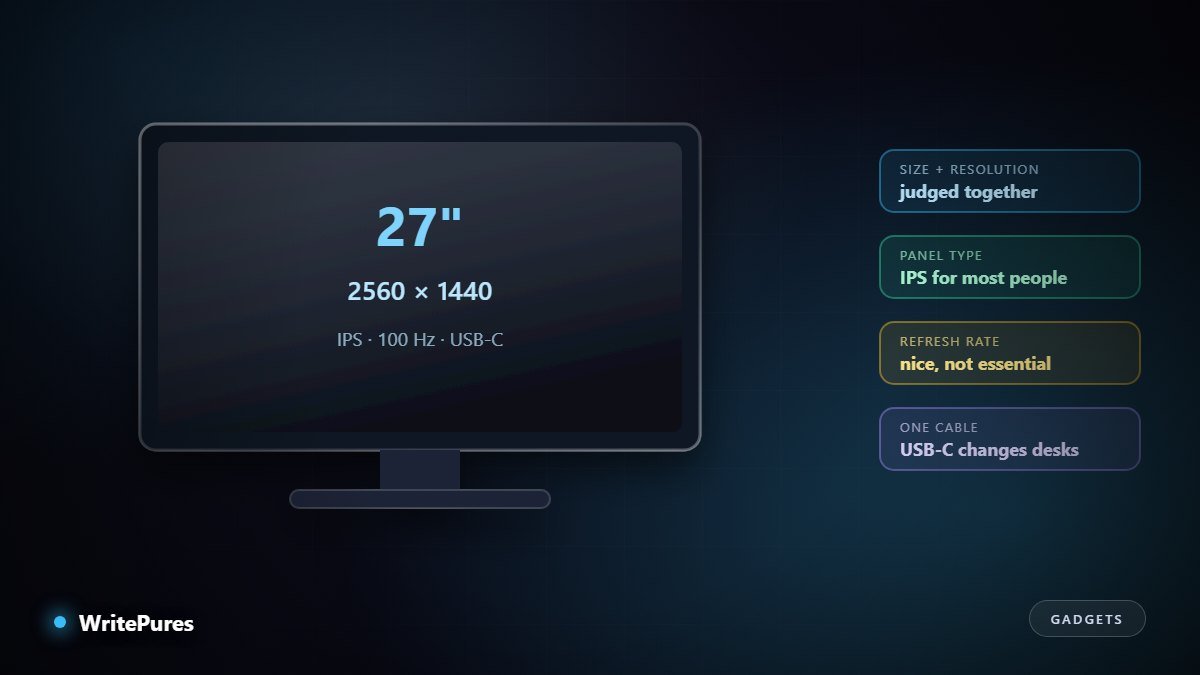
| 27" | 2560×1440 | The best balance for most desks |
| 27" | 3840×2160 | Very sharp text if your system scales well |
| 32" | 3840×2160 | Where 4K genuinely earns its price |
| 34" ultrawide | 3440×1440 | Replaces two screens for some workflows |
The classic mistake is buying the biggest screen at the lowest resolution the budget allows. A 32-inch 1080p panel is a worse daily experience than a 24-inch 1080p one, because the same pixels are stretched further.
Panel Type Matters More Than Refresh Rate
For anyone not playing competitive games, this is the specification that changes your day.
- IPS — accurate colour, stable from an angle. The right default for work, and the safe choice for a dual-screen setup where you view one monitor off-axis.
- VA — deeper blacks and higher contrast, slower pixel response. Good for film in a dark room, less good for fast motion.
- TN — fast and inexpensive, with poor viewing angles and weaker colour. Niche.
- OLED — the best contrast available, with genuine burn-in risk from static elements. Office software displays fixed toolbars for eight hours a day, which is the worst case for it.
About refresh rate
High refresh is lovely and mostly irrelevant outside gaming. Video runs at 24 to 60 frames per second regardless, and documents do not move. Given a budget choice between higher resolution and higher refresh for office work, resolution wins comfortably.
The Things People Forget
- Brightness. Around 250–300 nits is workable; 350+ matters near a window. A dim panel is tiring in a way that does not show in a spec comparison.
- Matte versus glossy. Matte defeats reflections, which is why most office monitors use it.
- The stand. Height adjustment is a health consideration, not a luxury. A fixed stand at the wrong height costs you more than the monitor saved. Check for VESA mounting if you plan to use an arm.
- Ports, and what they support. Count what you need and confirm each one does what you expect.
- Speakers. Built-in ones are almost universally poor. Do not let them influence the decision.
The USB-C point
If you work from a laptop, a monitor with USB-C power delivery is the most underrated upgrade available. One cable carries the picture, connects your keyboard, mouse and webcam through the monitor's hub, and charges the laptop. Arriving at the desk becomes a single connector.
Check two things: the power delivery wattage against what your laptop requires, and that the port actually carries video — not every USB-C port does. Our USB-C guide explains how to tell.
Two Screens, or One Large One?
Two monitors give you a hard edge to snap windows against, which suits work where you keep a reference permanently visible — documentation beside code, a spreadsheet beside a report. The cost is a bezel in the middle of your field of view and a second stand on the desk.
An ultrawide gives continuous space with no join, which suits timelines, wide spreadsheets and anything you scroll horizontally. It needs window-management software to be worth it, because a maximised window across 34 inches is unusable.
If you are buying one screen and unsure, buy the better single monitor rather than two cheaper ones. A second screen is easy to add later; replacing a panel you dislike is not.
Choosing by What You Do
- Office, code and browsing — 27" 1440p IPS with a height-adjustable stand. USB-C if you dock a laptop.
- Design and photo work — IPS with good colour coverage, and factory calibration if colour accuracy is contractual.
- Competitive gaming — high refresh and low response time, accepting a resolution compromise.
- Mixed home use — a good 27" 1440p IPS does everything acceptably; nothing specialised beats it across the board.
- Small desk or budget — a 24" 1080p IPS is honest and comfortable. Do not stretch to a bigger panel at the same resolution.
If you are also choosing the machine to drive it, our laptop buying guide covers matching the two.
Key Takeaways
- Size and resolution are one decision — pixel density is what you actually see.
- 27" at 1440p is the best balance for most desks.
- IPS suits almost everyone; OLED risks burn-in with static office interfaces.
- High refresh rate matters for competitive gaming and little else.
- A height-adjustable stand and USB-C affect your day more than any headline number.
Written by the WritePures newsroom. Spotted something that needs updating? Tell our editors.

0 Comments
Join the conversation
Replying toNo comments yet. Be the first to share your thoughts.