
USB-C promised one cable for everything. What it actually delivered was one connector shape covering wildly different capabilities — which is why two cables that look identical can behave nothing alike. Here is how to tell them apart.
The Connector Is Not the Standard
This single misunderstanding causes nearly all USB-C confusion. USB-C describes the physical plug — the reversible oval — and nothing else. It says nothing about how much power a cable carries, how fast it moves data, or whether it supports video at all.
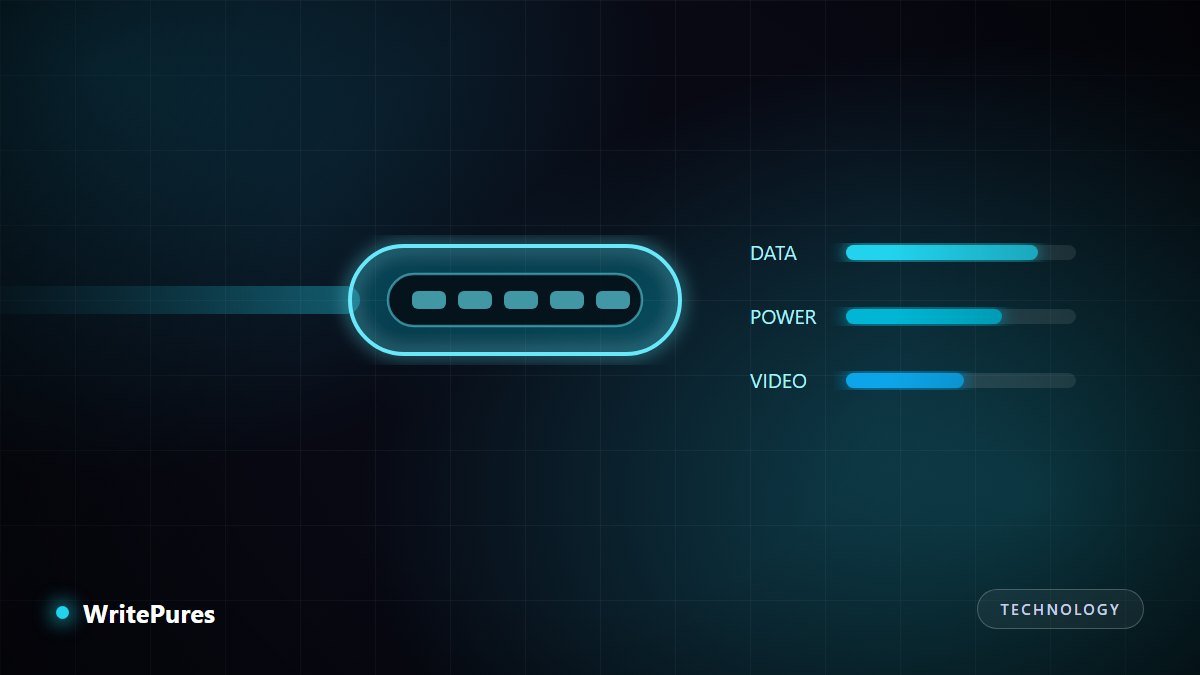
Three largely independent capabilities ride on that connector, and a given cable or port may support any combination of them:
- Power — anywhere from a few watts to 240W.
- Data — from 480Mbps (the speed of USB 2.0, from 2000) up to 80Gbps.
- Video — present or entirely absent.
A cable supporting 240W charging may be limited to USB 2.0 data speeds. A cable carrying 40Gbps may be short and expensive. There is no way to tell by looking.
Power: How Fast Charging Negotiates
USB Power Delivery is a conversation. Before supplying anything beyond a safe baseline, the charger and device agree on a voltage and current both can handle. The cable participates: cables rated above 60W contain an identifier chip declaring their capability. Without it, the charger refuses to supply more, which is correct behaviour rather than a fault.
| Power level | Typically powers | Cable requirement |
|---|---|---|
| Up to 15W | Accessories, slow phone charging | Any USB-C cable |
| Up to 60W | Phones, tablets, light laptops | Standard 3A cable |
| Up to 100W | Most laptops | 5A cable with identifier chip |
| Up to 240W | Workstation and gaming laptops | Extended Power Range (EPR) cable |
Three practical consequences. The charger must also support the wattage — a capable cable cannot conjure power a small charger does not have. Charging is limited by the weakest link among charger, cable and device. And a laptop charging slowly from a phone charger is working as designed, not malfunctioning.
If your concern is battery longevity rather than speed, our guide to phone battery life explains why heat matters more than charging speed.
Data: The Naming Problem
USB data standards have been renamed repeatedly, producing genuinely confusing labels where the same speed has carried several names over the years. The practical approach is to ignore the version names and look for the speed in gigabits per second, which marketing has increasingly adopted.
- 480Mbps — USB 2.0 speed. Common on charging cables and basic accessories. Fine for keyboards and charging; painful for external drives.
- 5Gbps / 10Gbps — the common range for external SSDs and docks.
- 20Gbps — less common, found on higher-end docks and drives.
- 40Gbps and above — Thunderbolt and USB4 territory.
The cable bundled with a phone is very often a 480Mbps charging cable. Using it for an external SSD will cap transfers at a small fraction of the drive's capability, and nothing will warn you.
Video: The Optional Part
Driving a monitor over USB-C requires DisplayPort Alternate Mode, which repurposes some of the connector's high-speed lanes for a display signal. It is optional at every level — the port, the cable and the device must all support it.
This is why plugging a monitor into a laptop's USB-C port sometimes does nothing at all. Manufacturers frequently enable video on only one or two ports. Look for a small display or Thunderbolt icon beside the port, or consult the port diagram in the manual.
Thunderbolt
Thunderbolt uses the same connector but is a distinct standard with guaranteed high bandwidth, video support and external PCIe. It is marked with a lightning-bolt icon. Thunderbolt cables work as USB-C cables; the reverse is not true.
How to Read a Cable Before You Buy
- Look for printed markings. Better cables print wattage and speed on the connector housing or sleeve. An unmarked cable is an unknown quantity.
- Check for certification. USB-IF certification means the cable was tested against the specification rather than self-declared.
- Match the cable to its job. A charging cable need not be fast at data; a drive cable must be. Buying one of each is cheaper than buying one expensive cable for everything.
- Mind the length. High-speed passive cables are short by physics. A long cable advertising 40Gbps is either active, expensive, or misdescribed.
- Be wary of the cheapest options. Non-compliant cables misreport capability and occasionally omit required components. For laptop-class power this is a genuine safety consideration.
A practical cable kit
Most people are well served by three cables: a short high-wattage charging cable for the laptop, a fast data cable for drives and docks, and a long inexpensive charging cable for the bedside. Label them, because you will not be able to tell them apart later.
Key Takeaways
- USB-C is a connector shape; power, data and video are separate capabilities.
- Cables above 60W need an identifier chip, and 240W needs an EPR cable.
- Ignore version names; look for the speed in Gbps.
- Video needs DisplayPort Alt Mode, which many ports simply do not have.
- Every Thunderbolt port is USB-C; almost no USB-C port is Thunderbolt.
If you are choosing a machine and trying to work out which ports you need, our practical laptop buying guide covers how to evaluate port selection alongside the rest of the specification, and our Wi-Fi 7 explainer covers the wireless side of the same question.
Written by the WritePures newsroom. Spotted something that needs updating? Tell our editors.







0 Comments
Join the conversation
Replying toNo comments yet. Be the first to share your thoughts.